How to export your Instagram data
Instagram lets you download your own followers and following list. Here's exactly how — screenshots included. About 2 minutes of tapping, then you wait for the email.
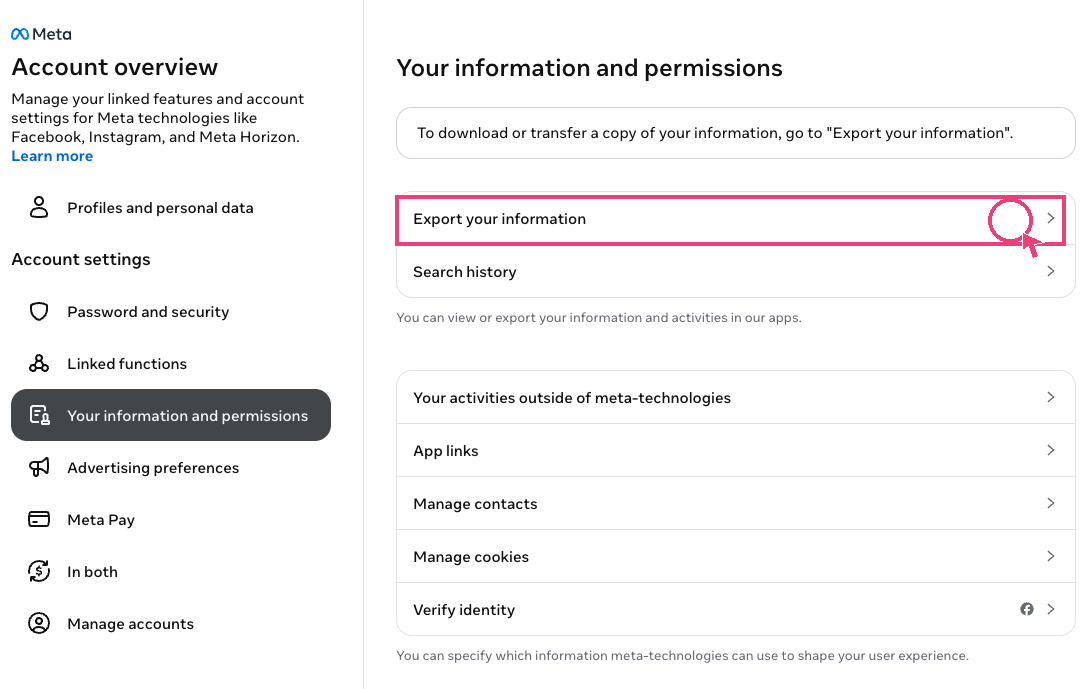
Open Meta Accounts Center and click "Export your information"
Go to Instagram Accounts Center → Download your information. Log in if asked, then tap the highlighted row.
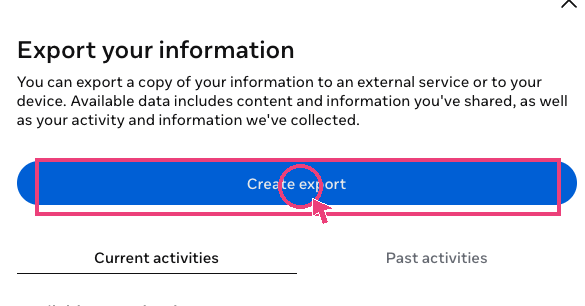
Click "Create export"
This starts a fresh export job for your account.
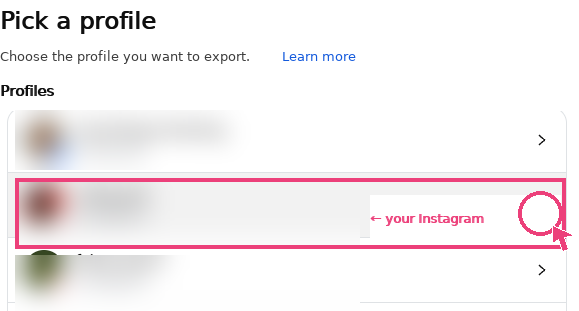
Pick your Instagram profile
Select the Instagram account you want to analyze.
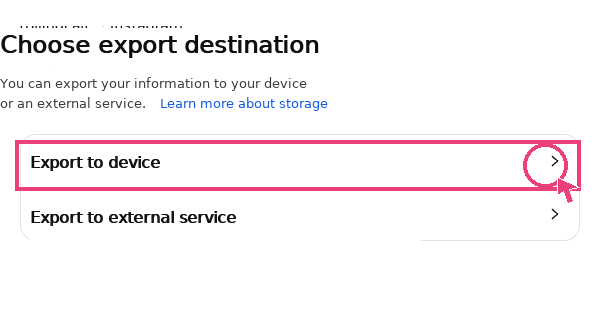
Choose "Export to device"
This sends the file straight to your phone or laptop — no third party involved.
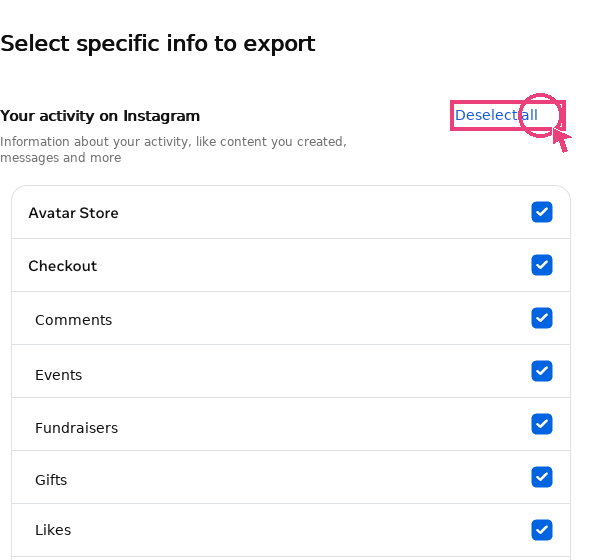
Tap "Clear all", then open "Connections"
Clears the long list so you only export what WhoLeft actually needs.
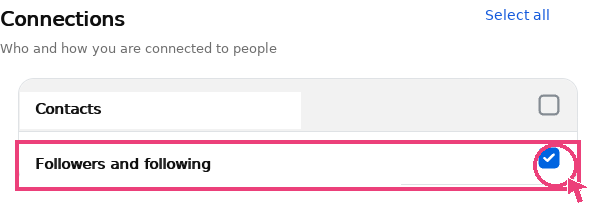
Tick only "Followers and following"
Leave Contacts unchecked — you don't need them.
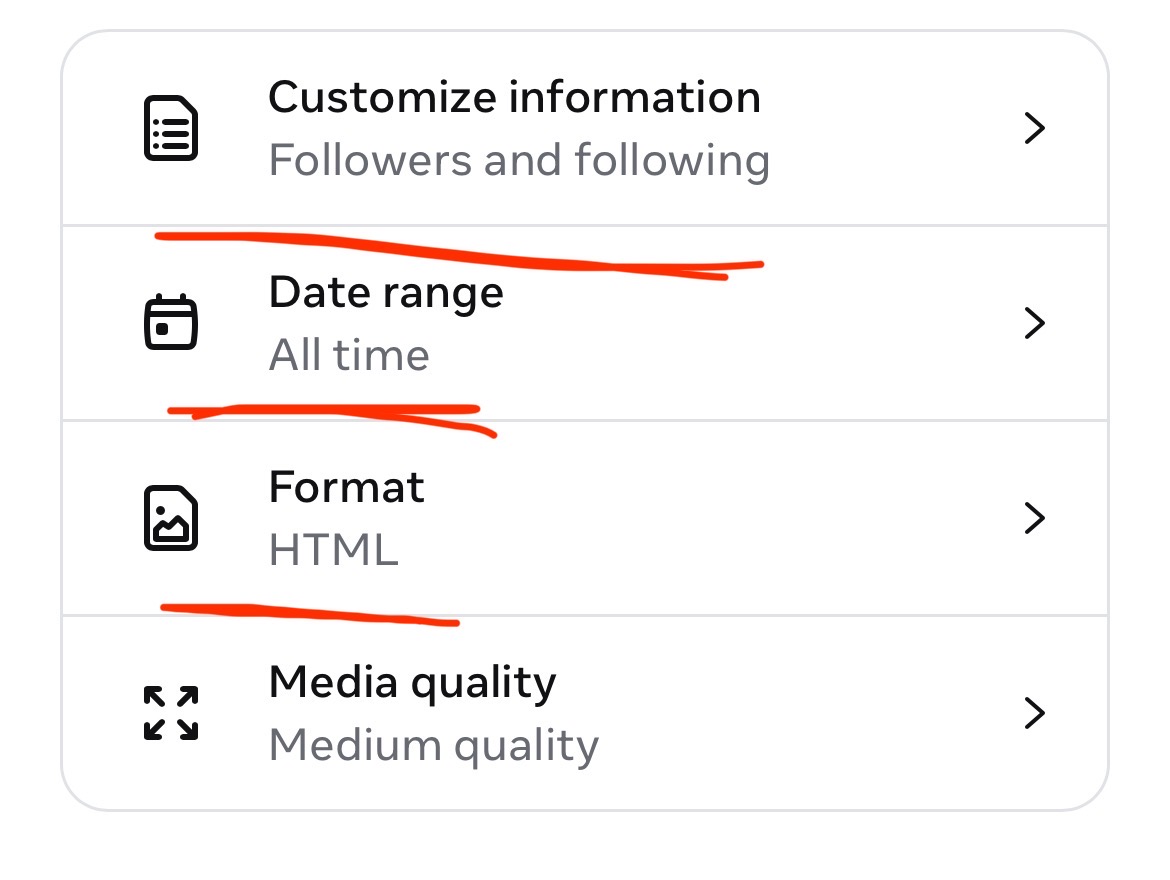
Set Date range to "All time" (or a manual range) and Format to HTML
Important: open Date range and change it to All time — the default is often "Last year" and will miss followers.
If All time doesn't work (greyed out, missing, or the export comes back partial), set the date range manually: pick a custom range with a start date several years back — roughly when you created your Instagram account — and today as the end date. The range must cover your entire follower history, or older followers get cut off.
Set Format to HTML, then tap Start export. Instagram will email you the ZIP — it usually takes 10 minutes to 24 hours.
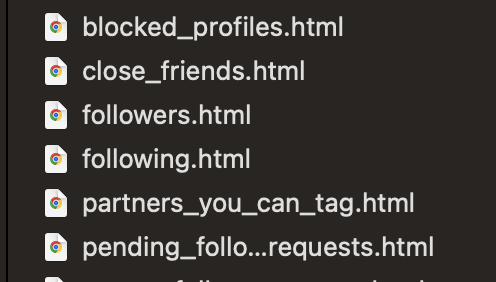
Unzip the file and grab followers.html + following.html
Open the email from Instagram, download the ZIP and unzip it. Inside the connections/followers_and_following folder you'll find several files — WhoLeft only needs these two: followers.html and following.html. Drag them into the upload boxes on the home page.
🔒 Your export file never leaves your browser. WhoLeft reads it locally on your device — no upload, no login, no tracking.